
How to setup Microsoft Authenticator
30 July 2026
Setting up the app
MFA is a very important part of online security. Verifying your identity using a second factor such as your Smart Phone prevents anyone but you from logging in, even if they know your password.
Setting up MFA on your phone is quick and easy, and once setup will only require you to select 'Approve' on a notification rather than entering a code like you might be used to with other MFA.
- Browse to the following address on your computer and login
- https://aka.ms/mfasetup
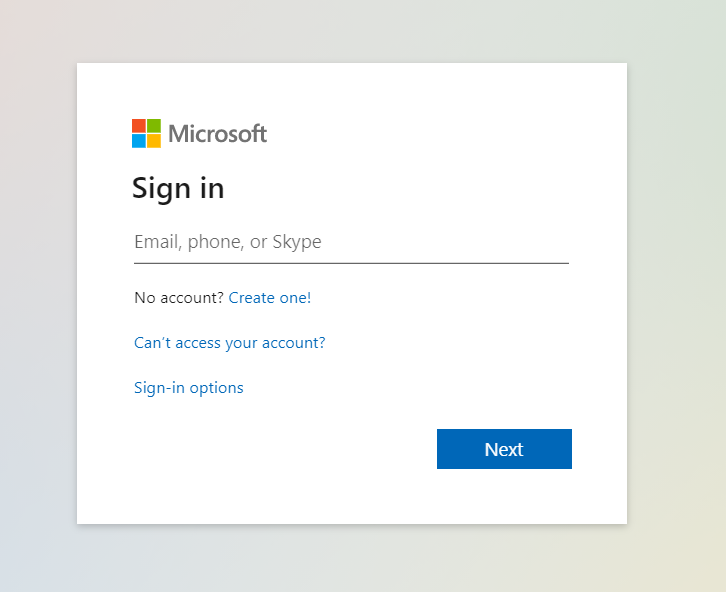
- Click next on this screen
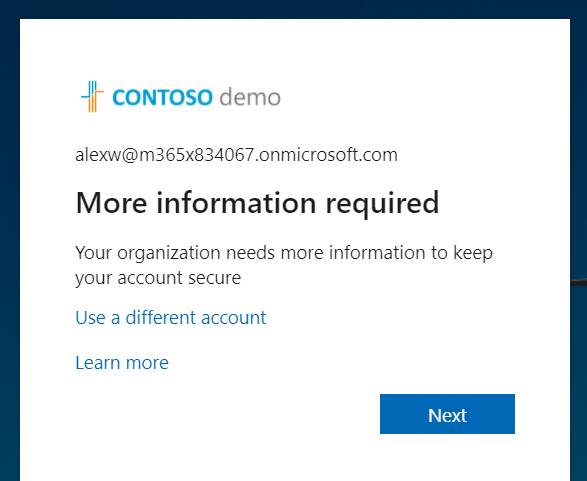
- Download the Microsoft Authenticator, then choose Next
- The MFA app can be downloaded via the following links:
- Microsoft Authenticator for Android
- Microsoft Authenticator for IOS
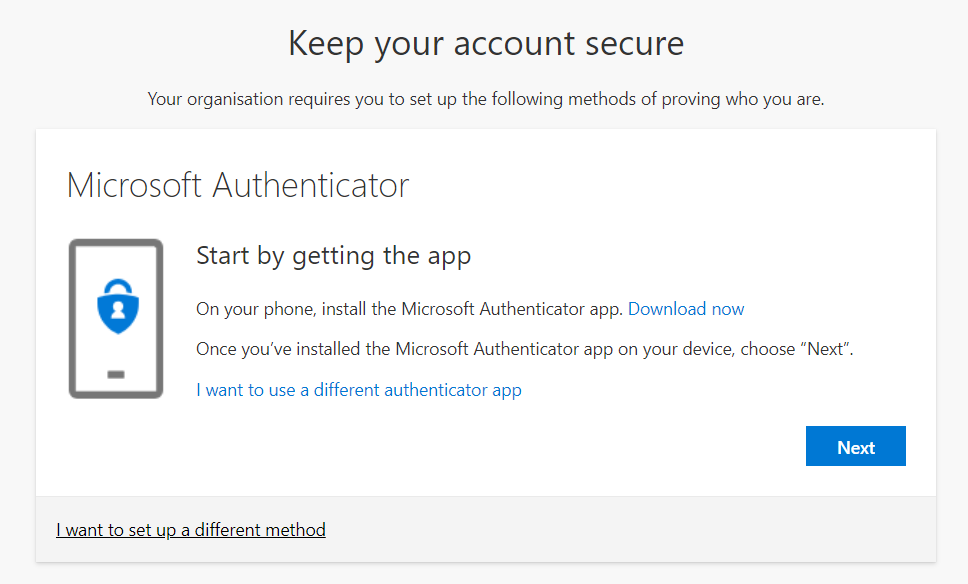
- Follow the steps described
- Follow the instructions on the screen:
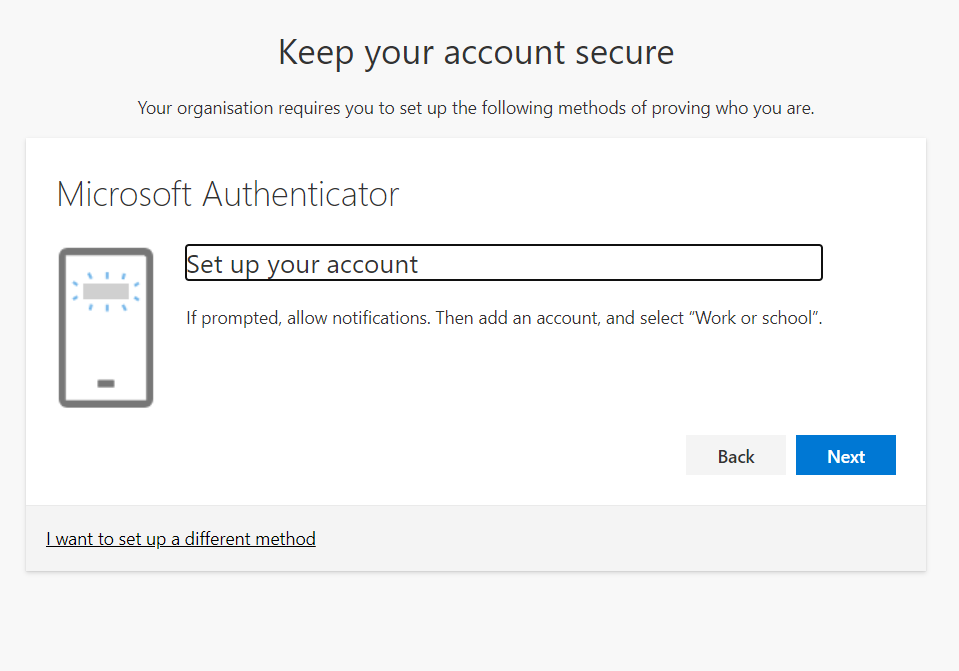
- On your phone
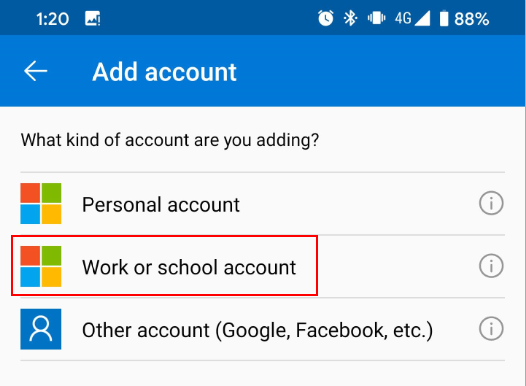
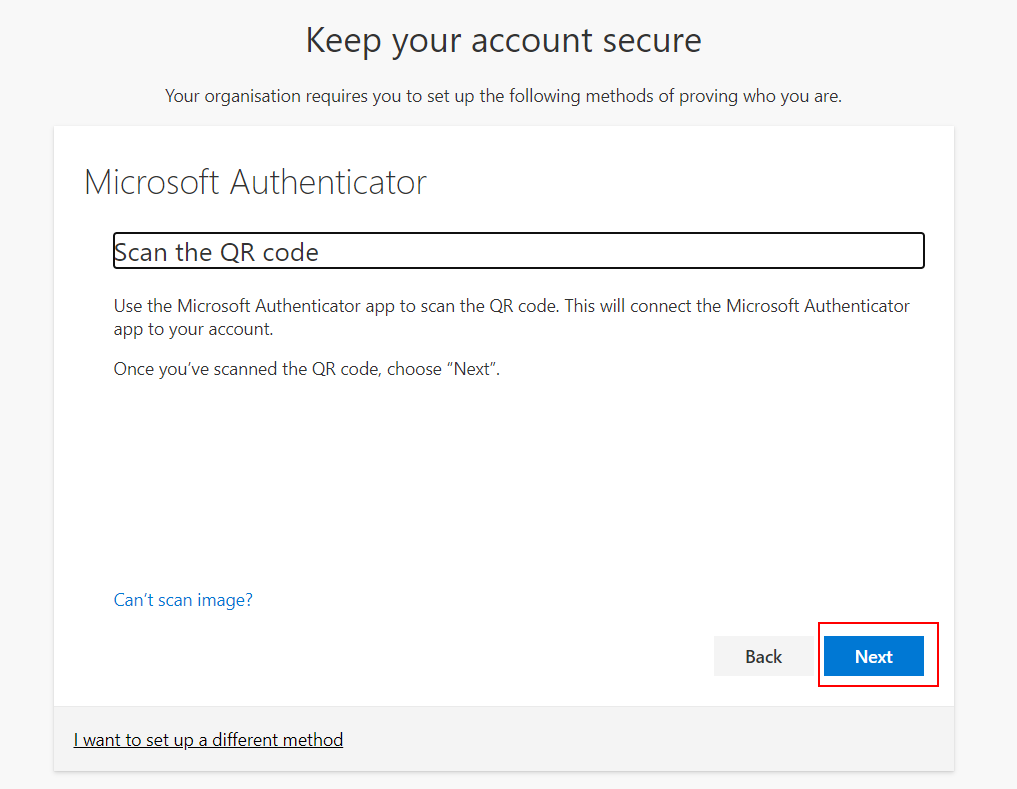
- Scan the QR code on the screen with your phone, then click next
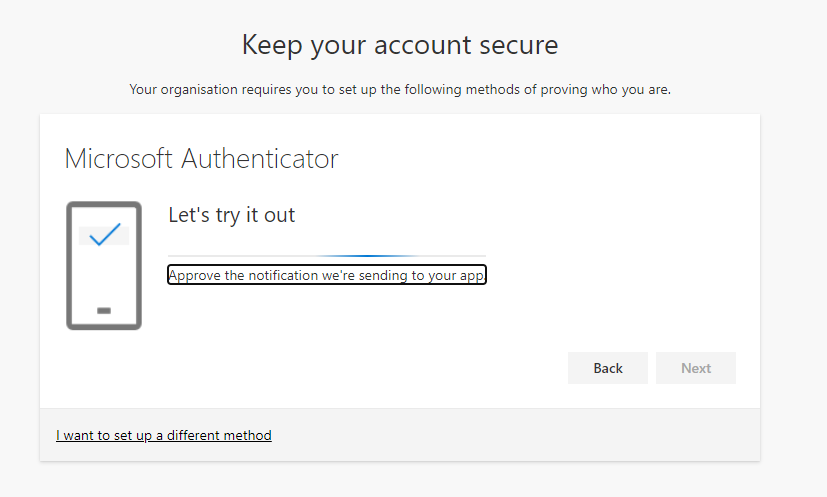
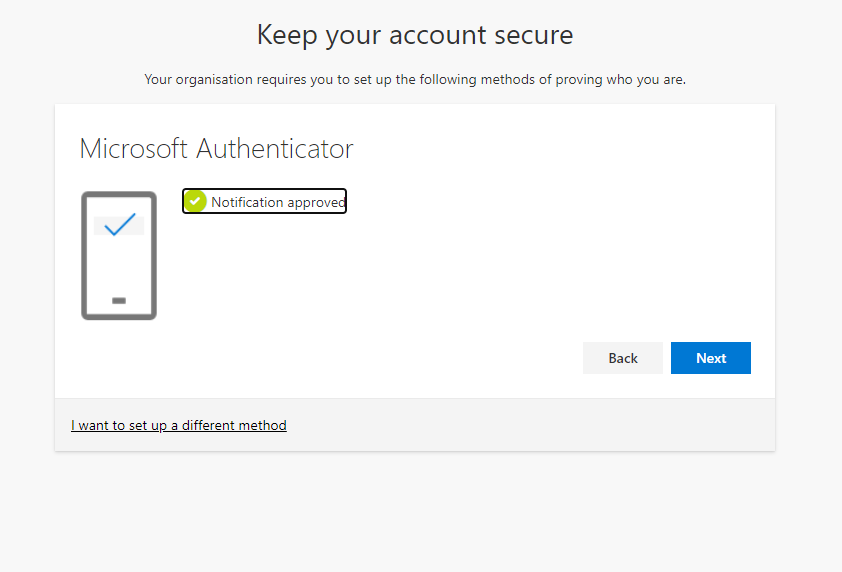
- Microsoft will now send a notification to your phone
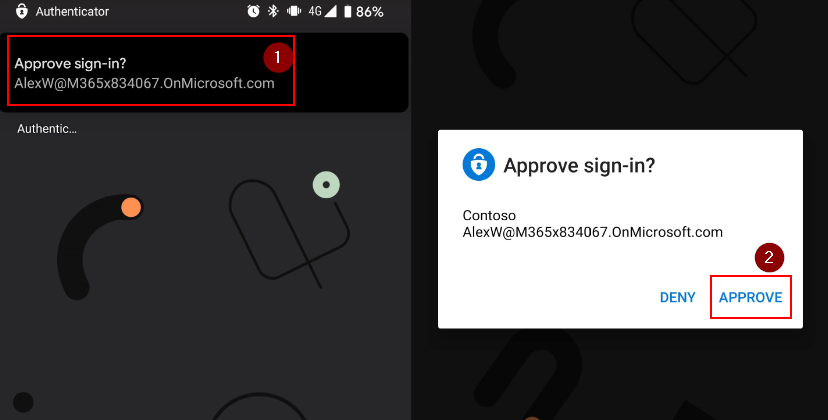
- On Your phone, select the notification, then choose Approve
- Setup complete
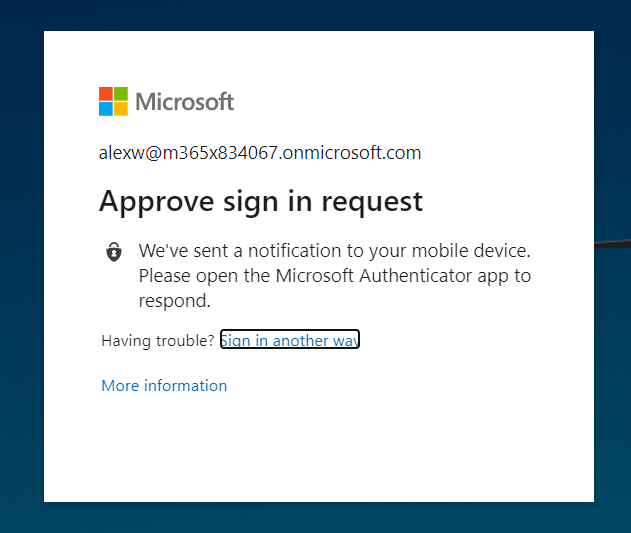
For future sign in's, you will be prompted like below and will receive a notification on your mobile.
Upgrade from SMS MFA to Microsoft Authenticator MFA
- Browse to the following website and log in: https://aka.ms/mfasetup
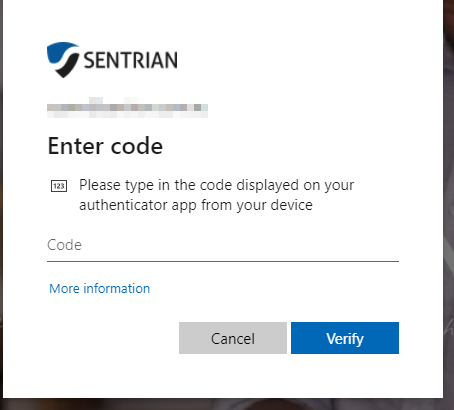
- Click next, then enter your MFA code
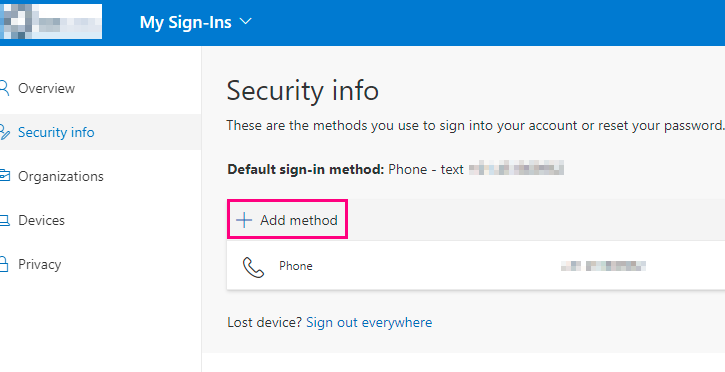
- Once signed in click on “Add Method” under Security Info Page
- Choose Authenticator App and then “Add”
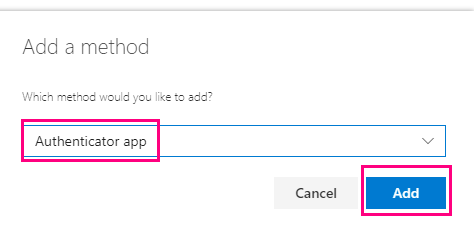
- Download the Microsoft Authenticator on your phone,The MFA app can be downloaded via the following links:
Microsoft Authenticator for Android
Microsoft Authenticator for IOS - Once you are ready, select Next
- When prompted, allow notifications for the app on your phone, then select Next
- On your phone, select Add Account, then Work or school account
- Scan the QR code on the computers screen with your phone, then click next
- Microsoft will now send a notification to your phone
- On Your phone, select the notification, then choose Approve
- Setup complete
- Navigate back to https://aka.ms/mfasetup
- Next to “Default sign-in method” click on Change.
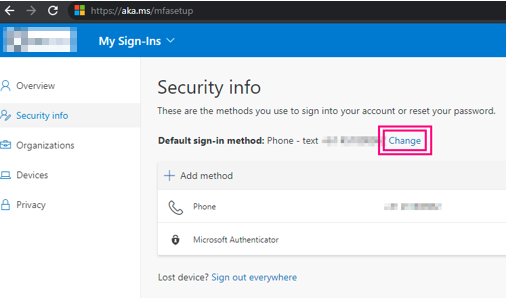
- Choose “Microsoft Authenticator – Notification” from the drop-down
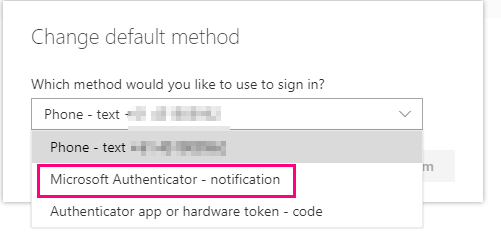
Microsoft Authenticator is now your default for MFA and you can now use this when signing into VPN or RDP.
If you have any issues with the above instructions, please contact Sentrian support.