Syncing Sharepoint folders to your PC
30 July 2026
Navigate to the document library that you want to sync via a web browser
Your SharePoint address is usually "https://companyname.sharepoint.com/"
If you don't know the address you can find it with the following method:
- Log in to https://portal.office.com with your company email address and password
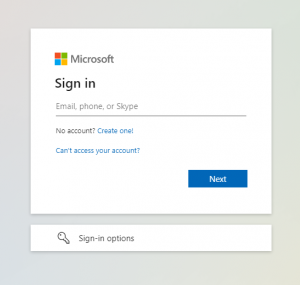
- One logged in, select the SharePoint icon on the rightIf for whatever reason you cannot see the SharePoint icon on the right, you can also find in by hitting the "App launcher" in the top left and selecting SharePoint there, the App Launcher should look like squares:

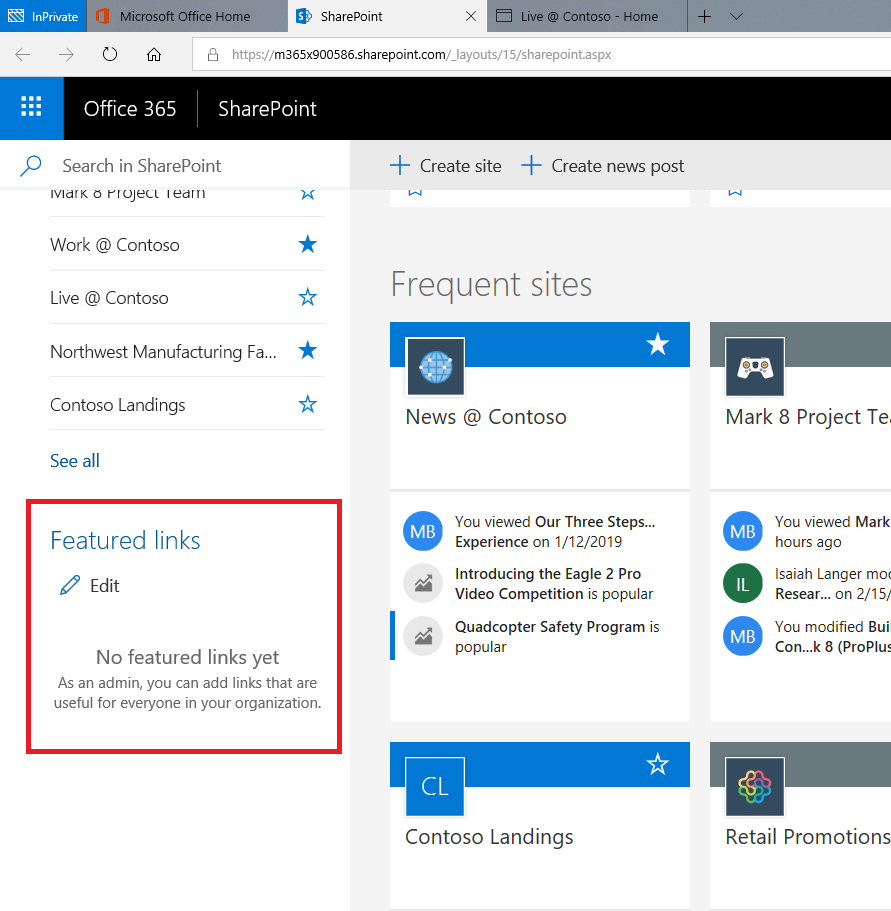
- You should now be able to see your site under featured sites on the leftIf your site is not listed under "Featured links" please contact Sentrian
- Once in your SharePoint site, select the document library that you want to sync on the left-hand side. For most clients, this is called Documents
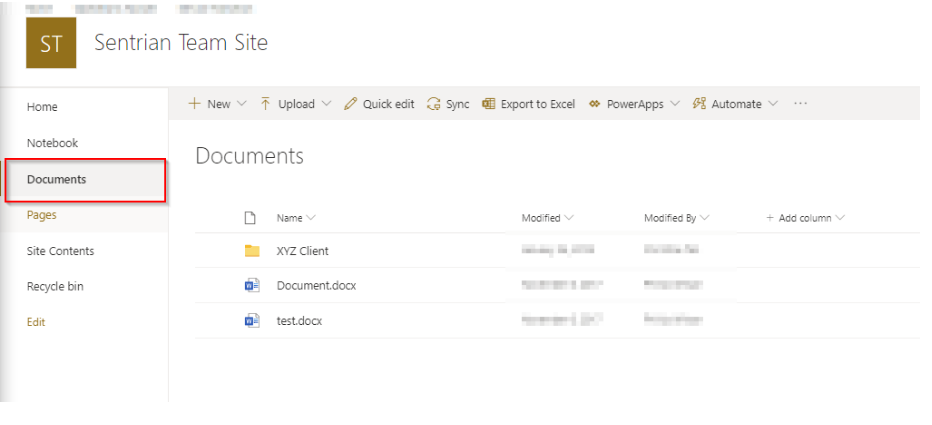
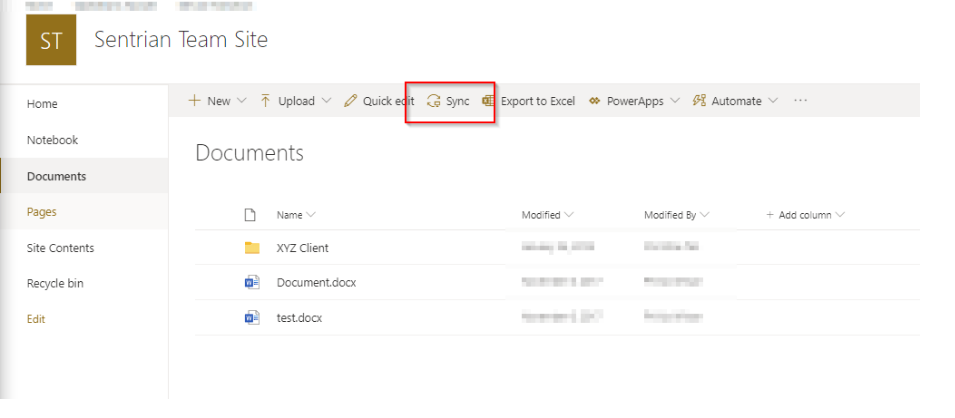
- Once you have navigated to the Library you wish to sync, click sync:
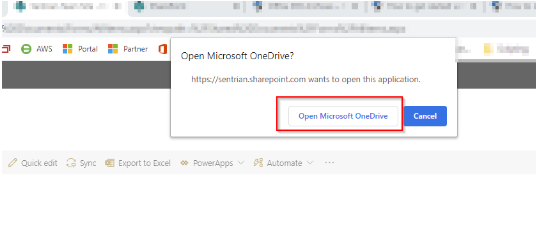
- Select "Open Microsoft OneDrive"
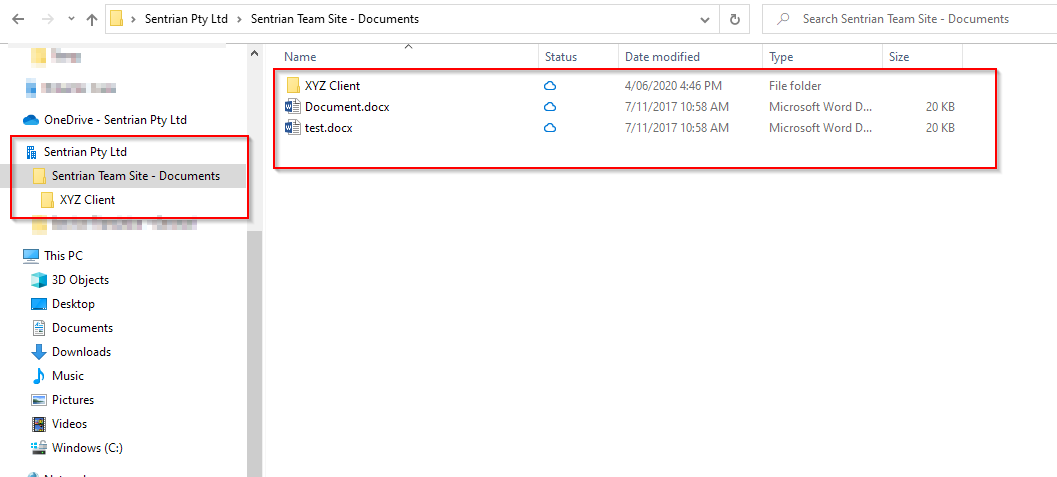
- That's it!Your folder should now be synced to your computer, now, just repeat the process for any other folders you wish to access.You can check them by opening File Explorer and opening the now synced library, which should appear in the left-hand menu: