How to share files and folders in Onedrive.
A big benefit of the Onedrive system is the ability to share documents and folders with anyone without creating additional versions of the same document. This also allows documents and spreadsheets to be worked on at the same time.
Different types of access
Microsoft provides 4 different permissions options when sharing a document. The methods described below can be enabled or disabled and even restricted to certain users.
Anyone with the link
This option allows you to share files to anyone outside of your organisation with no authentication. This option is not available by default, if you require this method, please contact Sentrian.
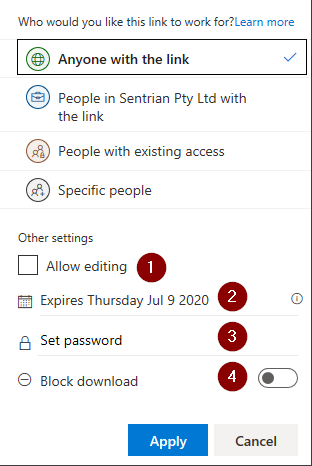
- Ticking this box allows the user to edit the document/folder that you are sharing with them, this would also allow the recipient to add and remove items from a folder.
- Set an expiry date on the link, both the default length and maximum length can be customised by Sentrian.
- Sets a password for the link, this will require the recipient to enter a password before they can access the file/folder.
Sentrian recommends never sending a password in email, but if it is required, you should use a free service like https://onetimesecret.com/ - This button will remove the ability to download, print or copy the file or files you are sharing. Please note, while this method does its best to prevent coping, this is not foolproof and can be bypassed, such as with a screenshot tool.
People in "Your Company" with the link
This allows anyone in your company or anyone with a company email address to access the file or folder, providing they have been sent the link. If someone clicks the link they will be prompted to log in to the Microsoft portal if they have not already signed in.

- Ticking this box allows the user to edit the document or folder that you are sharing, as well as allow them to add and remove items from a folder.
- This button will remove the ability to download, print or copy the file or files you are sharing. Please note, while this method does its best to prevent coping, this is not foolproof and can be bypassed, such as with a screenshot tool.
People with existing access
This method is useful when you want to send someone the exact location of the document or folder, providing they already have access permissions. This is equivalent to opening the file or folder in the online portal and sending them a browser URL to the page.
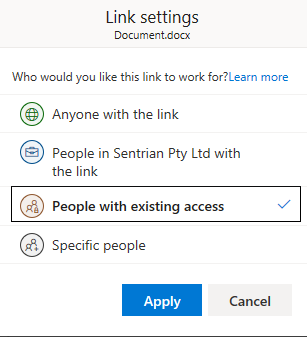
There are no options here as the recipient is expected to already have full access.
Specific People
This shares the file/folder with a specific person, this method
the recipient to have a Microsoft account.
If you have shared the file/folder multiple times with different permissions, you will see multiple links and can manage these permissions individually.
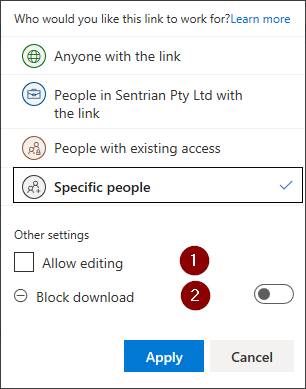
- Ticking this box allows the user to edit the document or folder that you are sharing, as well as allow them to add and remove items from a folder.
- This button will remove the ability to download, print or copy the file or files you are sharing. Please note, while this method does its best to prevent coping, this is not foolproof and can be bypassed, such as with a screenshot tool.
How to share a file/folder
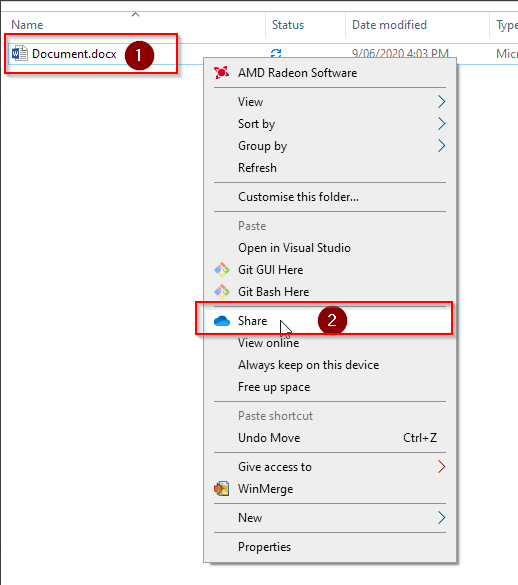
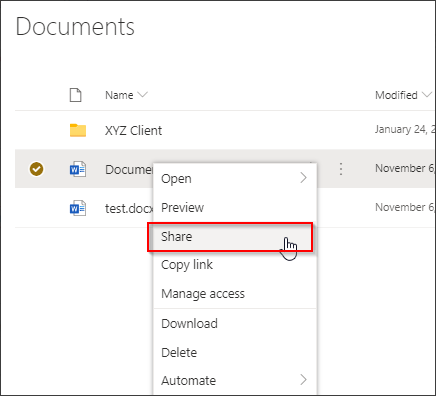
- Right-click the file you wish to share and select share
This can be done in Onedrive File Explorer or in the Onedrive web browser portal.
2. Set your sharing settings
Please refer to the above guide
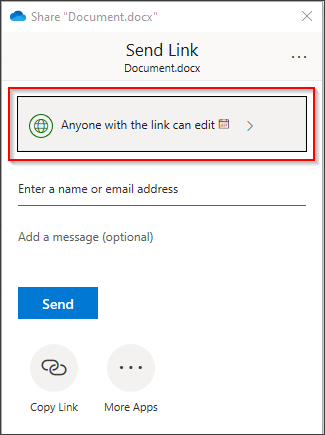
3. Enter the name or email of the recipient/s depending on if they are internal or external
Depending on how you setup your sharing settings you may send links to both internal and external users at the same time.
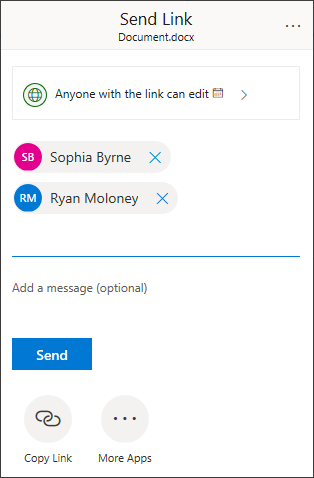
a. If the recipient/s is Internal
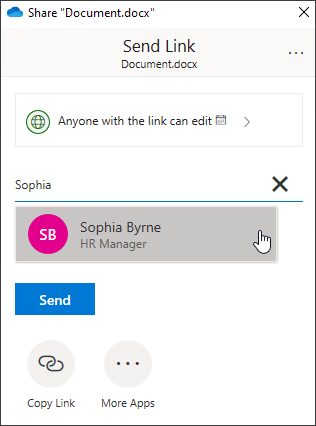
Entering the name of an internal staff member will attempt to autofill the user, you may enter their email instead if needed.
Select the user's name to add them to the recipient list, you may now add more recipients if needed.
b. If the recipient is External
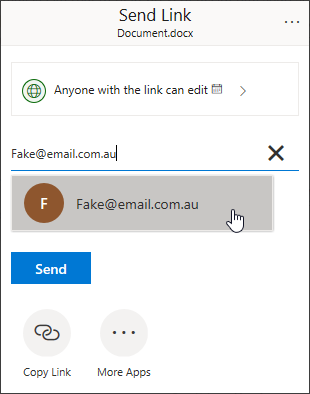
You must enter the email of the recipient.
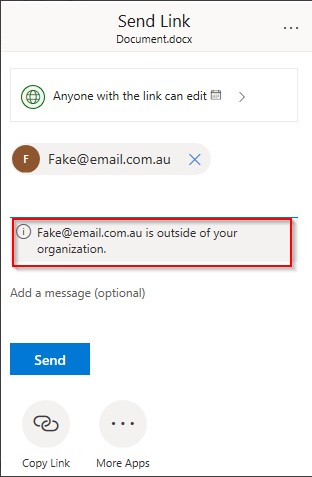
After typing the full email address, select it from the prompt / drop down, you may now add more recipients if needed, it will also warn you if the email is external to help prevent accidental shares.
How to manage or remove sharing permissions
If you need to remove access to a shared file/folder, you can do so via the same menu you shared it.
- Right-click the file you wish to alter from and select share
This can be done in Onedrive File Explorer or in the Onedrive web browser portal. - Select the 3 dots in the top right of the window, then select "Manage Access"
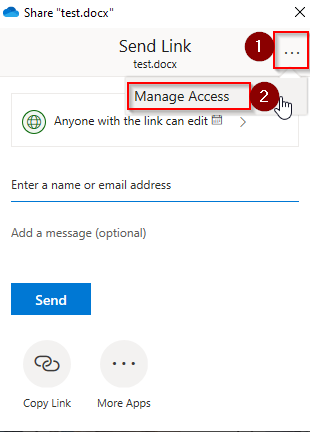

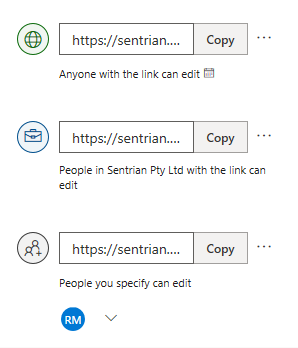
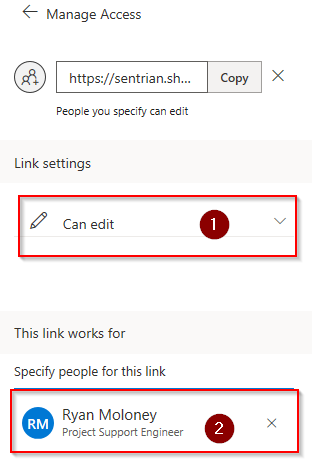
- From this menu, you can manage the sharing permissions.
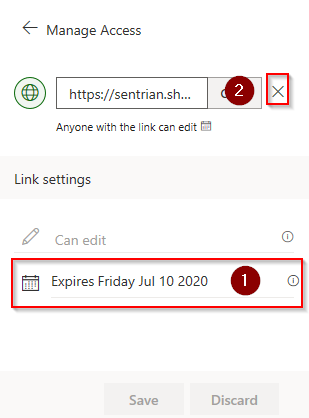
If managing a share to "Anyone" you can:
1. Click the "X" to remove the permissions
2. Change the expiry date
- If managing a share to specific people you can also:
1. Change the edit permissions
2. Add/Remove user permissions