
How to setup Duo Authenticator App

Android users accessing their work email must use the Microsoft Outlook for Android app. The native email app doesn't support the correct method of authentication needed for DUO MFA.
Apple users can use either the Outlook for IOS app or the default Mail app, but Sentrian recommends Outlook for IOS for the best experience with Office 365.
Table of Contents
Installing the app and enrolling your device
When enrolling your device you will receive a DUO activation link via SMS. This link is only active for 2 days, if you do not enrol via this link in that time, you must contact Sentrian support for another to be sent.
- Download the DUO App
- Apple App Store:
Apple Duo Mobile App
Google Play Store:
Android Duo Mobile App - Open the enrollment link
- You will have been sent an enrollment link to your device via SMS, open this link
If you are missing this link, or if your link has expired, please contact Sentrian support for assistance

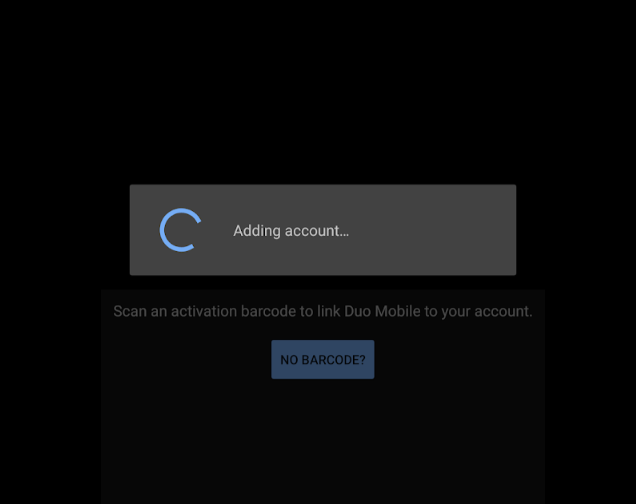
- The Duo app will open and add your account
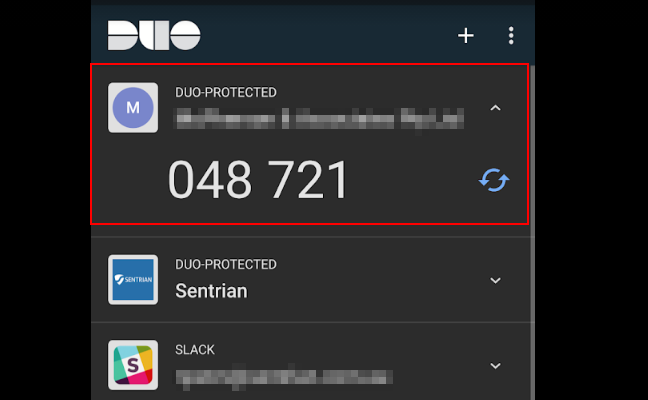
- Confirm your account has been added to Duo
Setting up other applications in Duo
MYOB
https://help.myob.com/wiki/display/sec/Setting+up+two-factor+authentication+on+a+new+phone
Follow the steps for: "I still have my old phone, but need to set up a new phone"
1: Follow steps 1-6 to remove the current google authenticator.
2: Skip step 7 " Follow the steps below for your new device. "
(Google Authenticator is not required as the Duo app will replace the google authenticator)
3: Follow step 8 of the MYOB documentation up to step 8:f "Open the authenticator app on your device and add a new account"
4: In the Duo app on your phone, select the + button in the top right to add a new account. (Allow use of the camera if needed)
5: Continue the steps, using the Duo app to scan the QR code