
BYOD Windows Computer Enrolment Steps
PAGES STILL REQUIRED:
What data can be accessed
Enrollment troubleshooting
Install the company portal
As part of your company's security posture, you may be required to enrol your device in Microsoft Intune. Microsoft Intune is a Mobile Device Management (MDM) software that allows your company to deploy applications, control basic settings, and require your device to meet certain security standards before being allowed to access company data.
You can read more about Microsoft Intune and what it allows and does not allow your company to access here:
LINK ME
The below instructions will show how to enrol your Windows 10 or 11 computer into company management. If you run into any issues, please read through our enrolment troubleshooting page below or contact our support team.
LINK ME
As part of the below steps, you will be required to:
- Reboot you computer
- Set a password (if your device doesn't have one)
- Set a pin (if your device doesn't have one)
Time needed: 15 minutes.
- Confirm you are connected to the Internet
- Please ensure your computer can load the below link:
a. Type this link into your computer's browser: https://portal.office.com
b. Press Enter on your keyboard
c. If the site loads, you are connected to the internet
d. Proceed to step 2 - Open Windows Account Settings
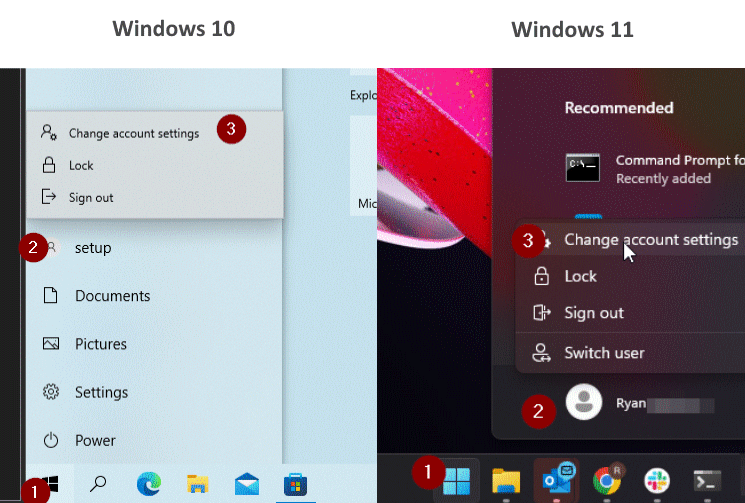
- a. Select the Windows Icon button in the bottom left of the screen
b. Select the Person Icon
c. Select Change account settings
- Open Work and School Settings
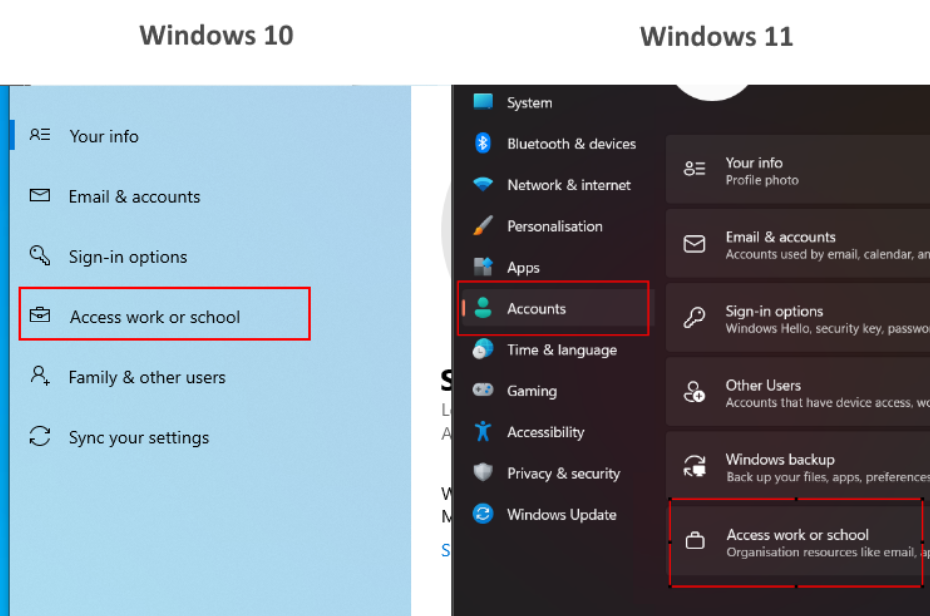
a. On Windows 11 only: Select Accounts on the left
b. Select Access Work and School
- If your account is already listed, please remove it, then select Connect
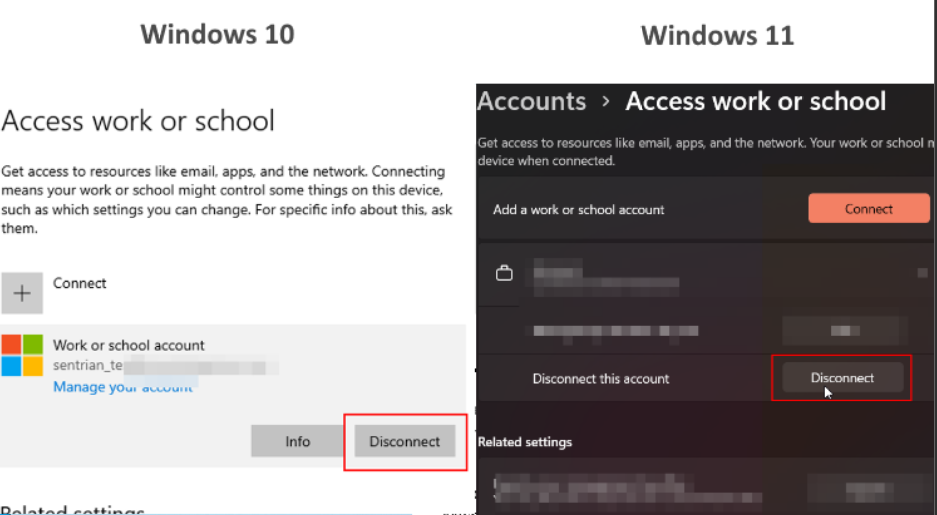
- a. Select the account
b. Select Disconnect
c. Select Connect
- Sign in with your work account
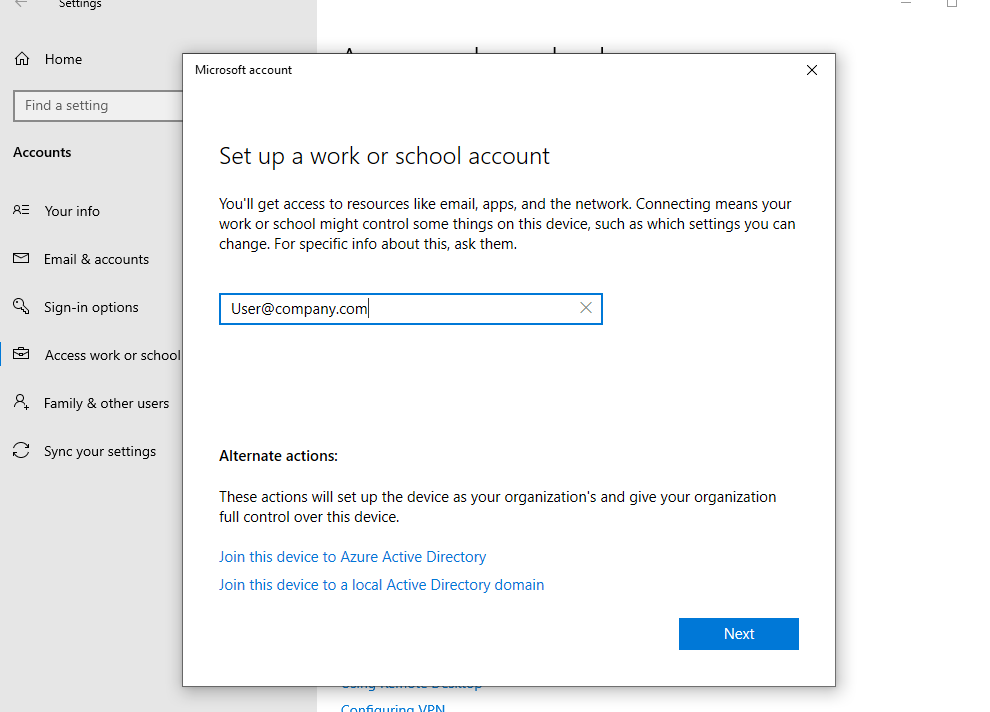
- a. Enter your email
b. Enter your Password
c. Complete an MFA prompt is required
- After signing in, you may be required to create a pin if you don't already have one
- This requirement may be due to certain corporate software requiring Windows Hello.
A pin is also a convenient and secure way to quickly unlock your device. - If you are not prompted, please continue to the next step.
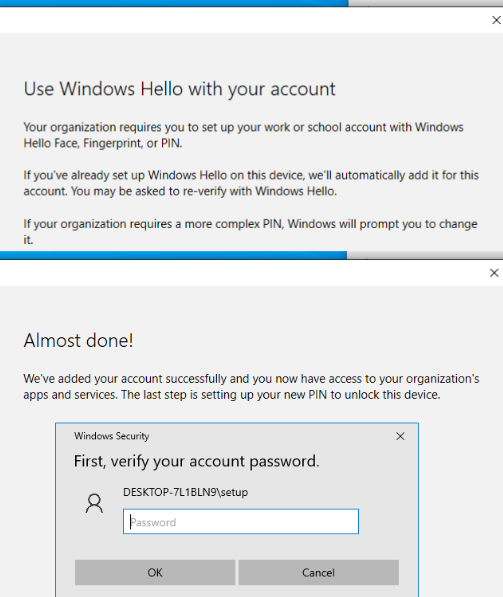
- Once completed, select Done
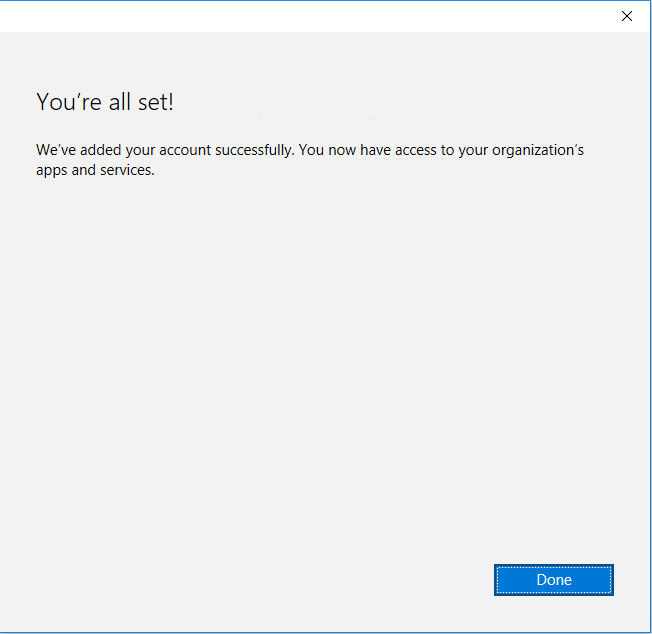
- Confirm that your account now shows in the accounts list

- Reboot your home computer
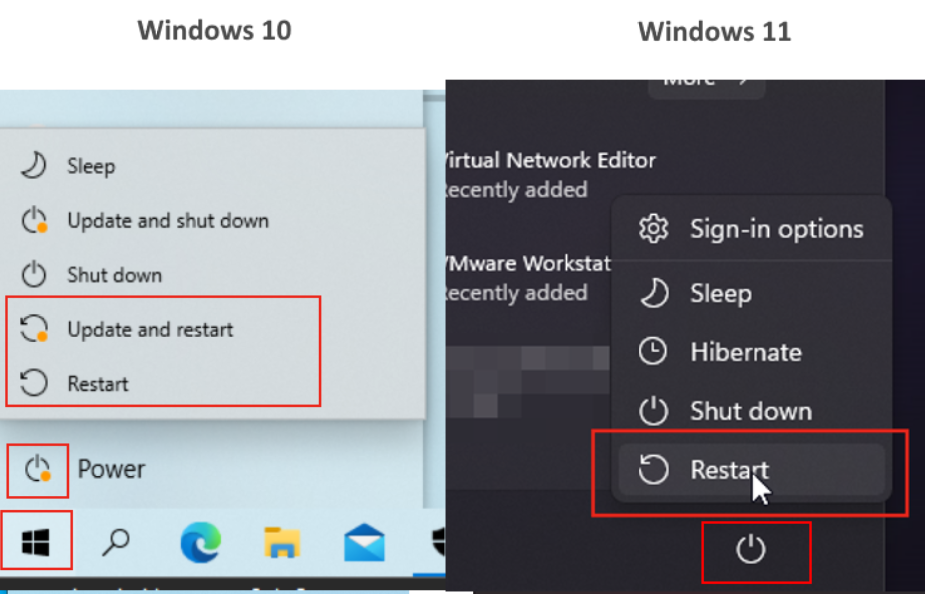
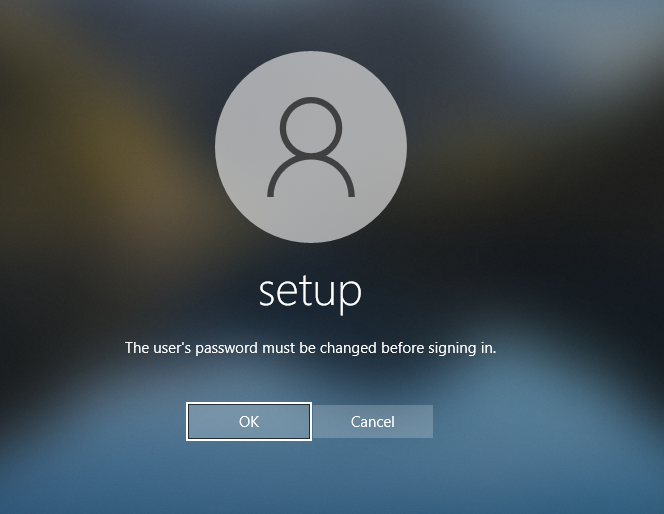
- After rebooting, if you did not have a password configured or your password did not meet complexity requirements, you may be prompted to set one.
- a. If you did not have a password set, your current password is blank
b. The password requires a minimum of 8 characters, 1 Uppercase letter, and 1 number
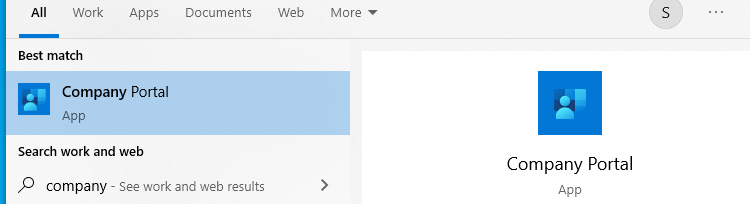
- After signing in, open the Company Portal app
- a. Select the Windows icon in the lower left corner
b. Type 'Company Portal' to search for the app
c. Select the company portal app from the list to open it - If your search does not return the company portal, please open the Microsoft Store app, search again for "Company portal", then install and open the app.
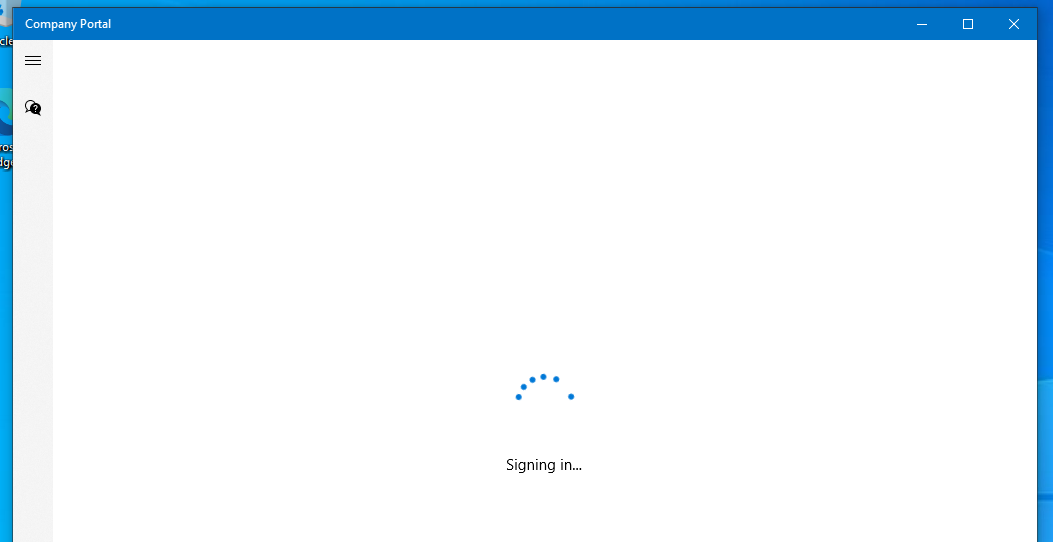
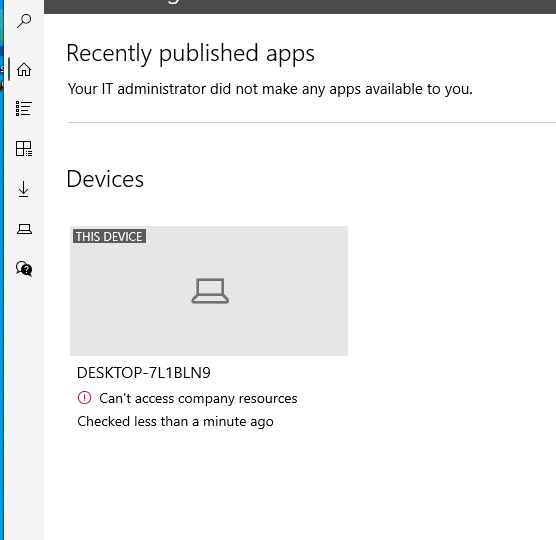
- Check that your device is compliant
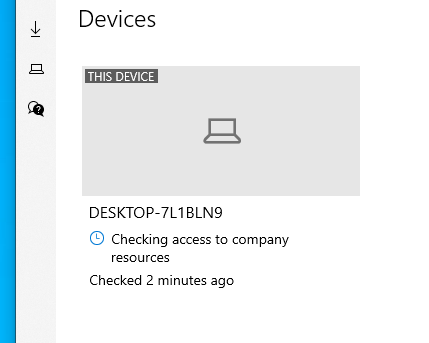
- This may take up to 5 minutes to finish these checks. If you device fails the checks and is still unable to access company resources, please see our guide below to remediate:
LINK ME - Checks in progress:
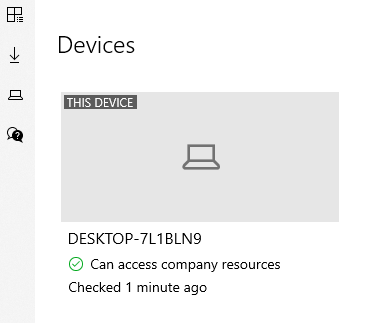
The device has passed all checks:
The device has failed compliance checks:
- Provided your device has passed all compliance checks, you are now able to access company resources from your home computer
- If you had any issues with the above steps, please contact our support team
- Get Support