Accessing and syncing files shared with you on Onedrive
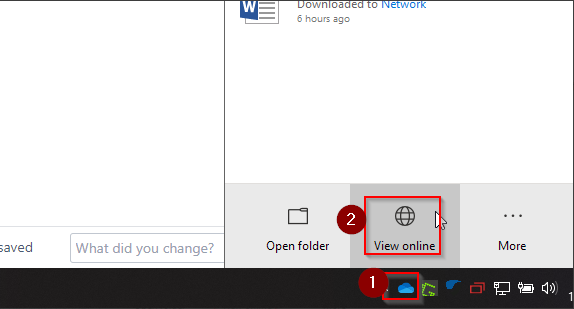
To begin, you will need to access the Onedrive web portal. You can quickly reach this by clicking on the Onedrive cloud icon in your taskbar (bottom right of your screen) and then selecting "View Online"
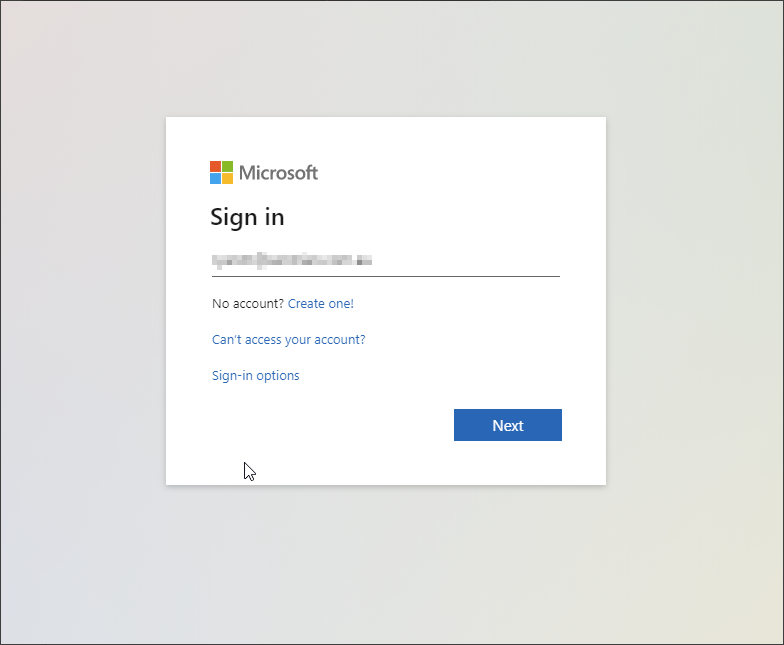
Alternatively, you can access the portal directly in your web browser by navigating to the following URL and signing in with your company email address and password (if prompted):
https://portal.office.com
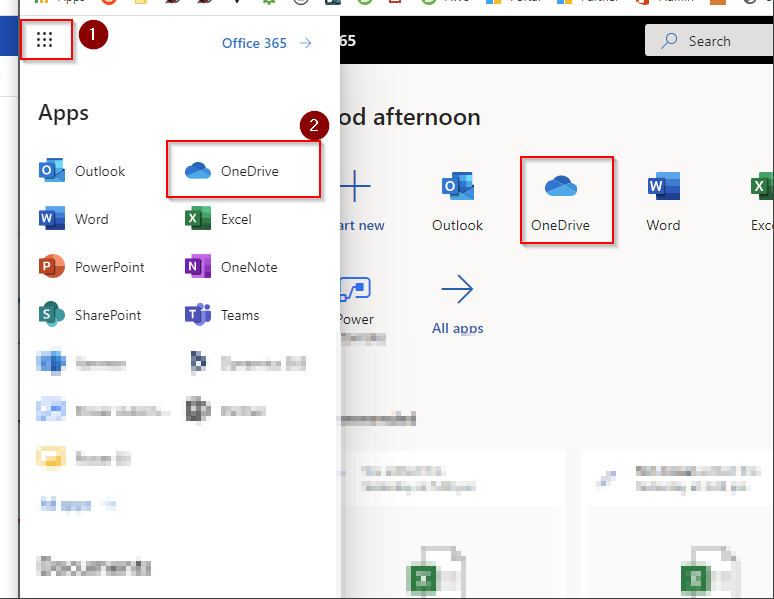
Once logged in, select the Onedrive icon using the App Drawer in the top right of your screen:
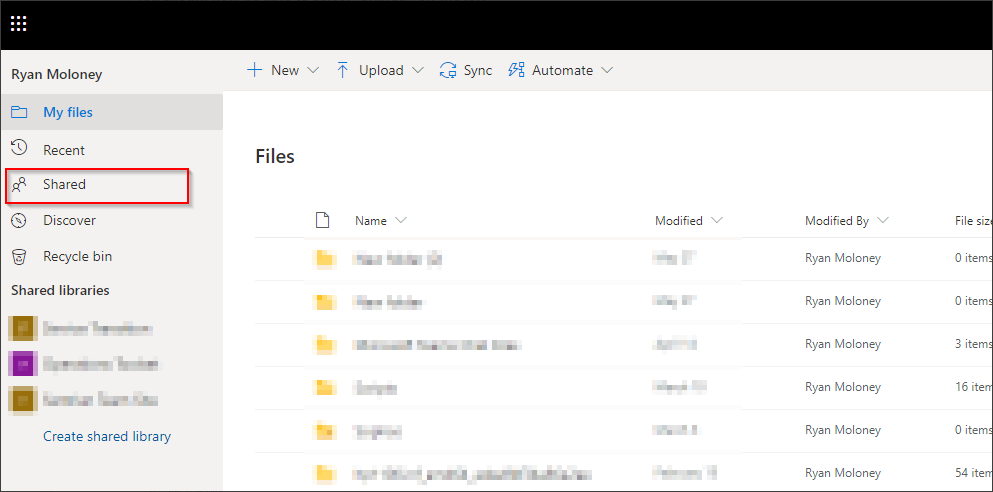
Access files shared with you by clicking on the 'Shared' button in the left-hand menu of the Onedrive portal:
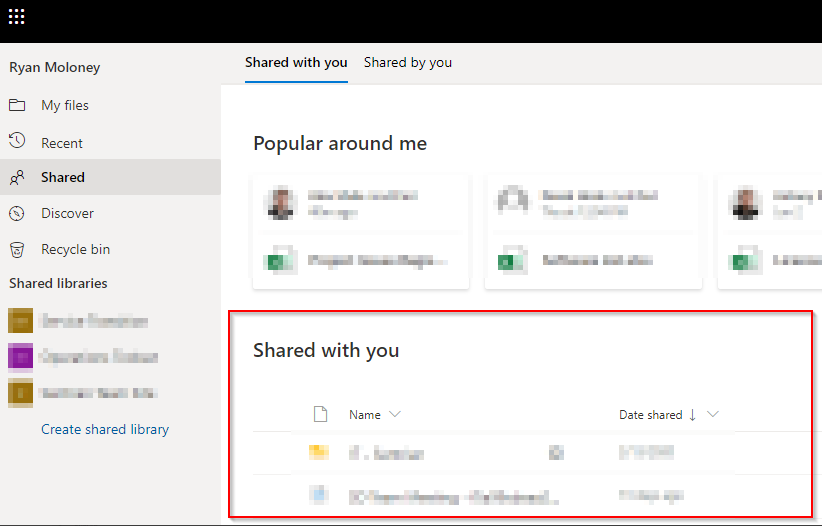
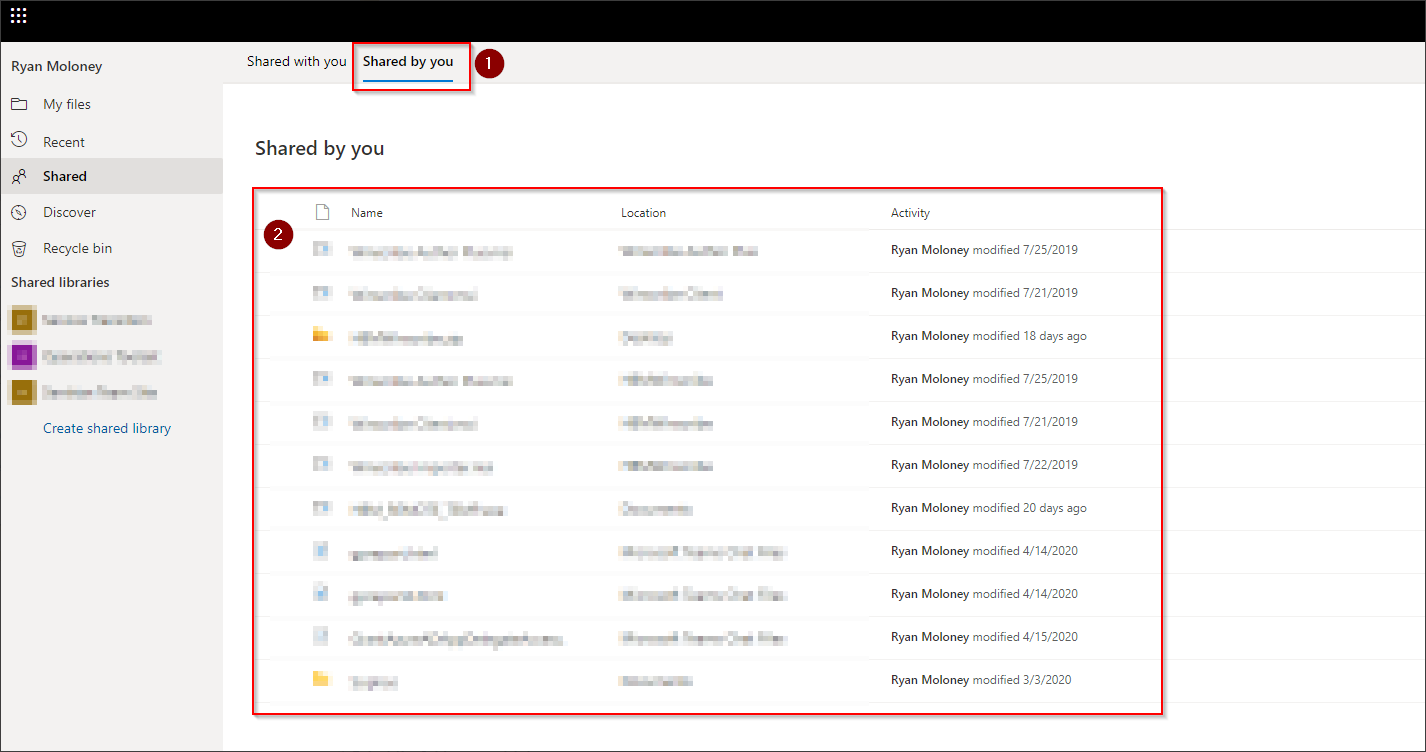
This page allows you to view files shared with you, as well as files you've shared with other people:
Sync folders shared with you to your computer
Firstly, if your Onedrive client hasn't been logged in on your computer, it will prompt you during this process, you will require your company email address and password. Syncing externally shared data can also be restricted by the other party, if you're unable to see a 'sync' button during the below guide, please contact the party who has shared the data with you.
Using the 'Shared' button in the Onedrive portal, select the desired folder:
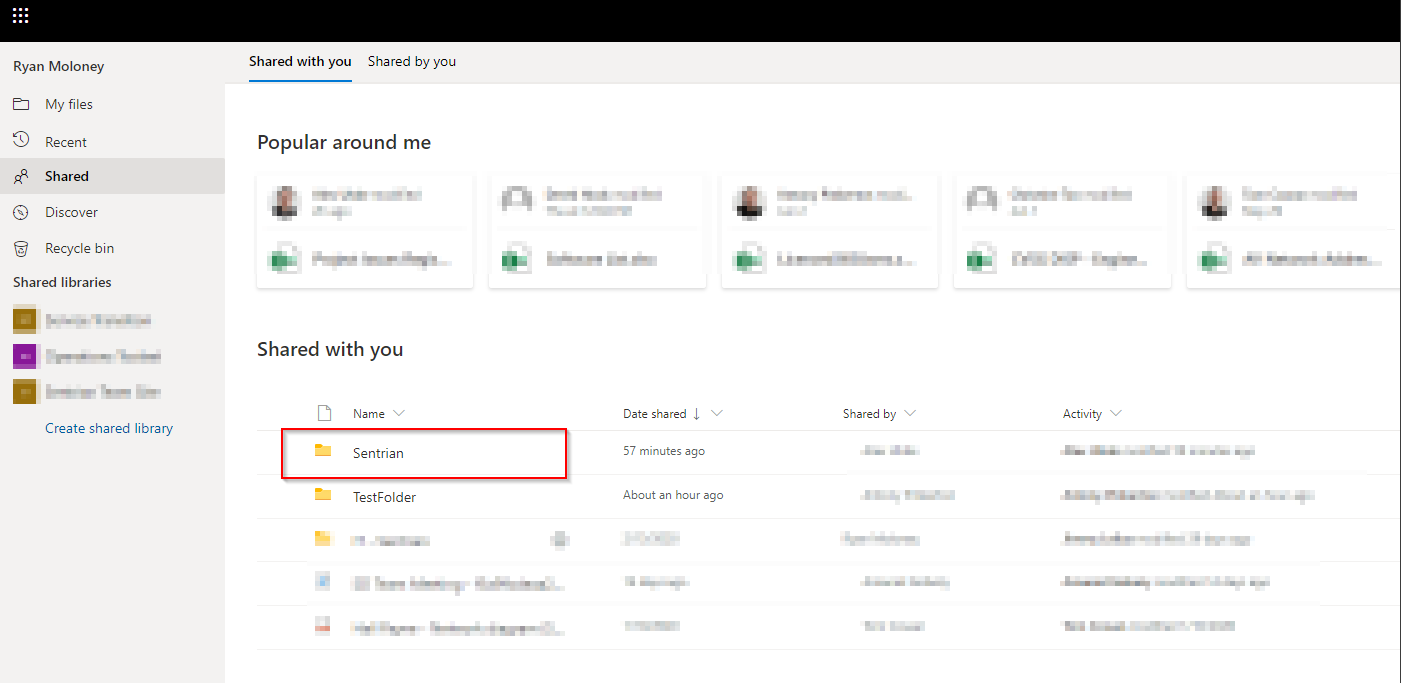
You should now see a Sync button in the top menu bar, clicking this will open your Onedrive client to begin the sync:
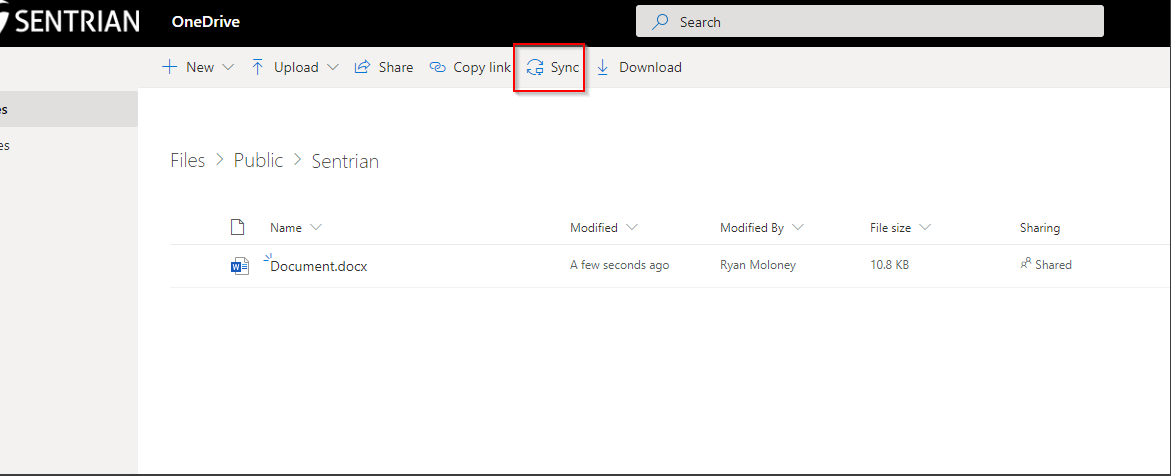
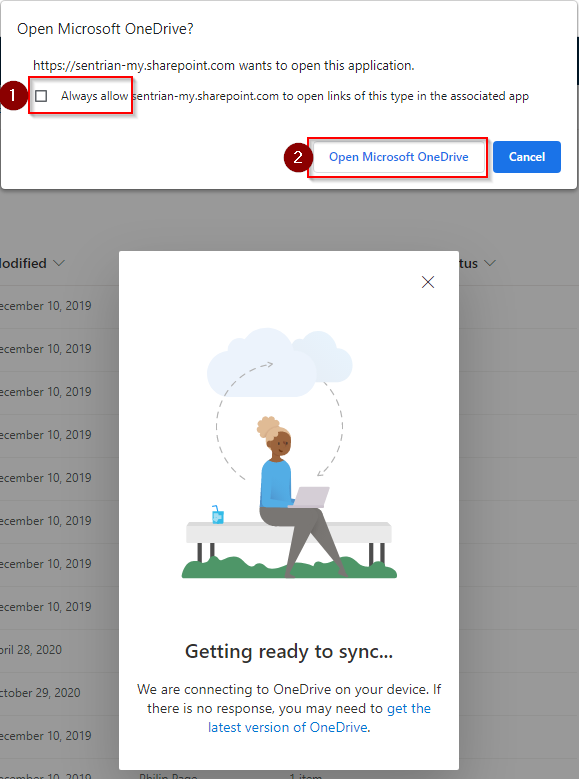
You may receive a prompt to open Onedrive, tick the option to always allow and then the button to open Onedrive:
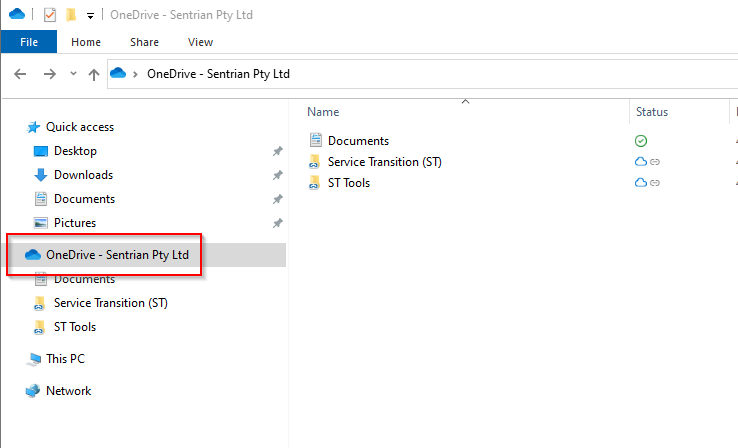
The folder you've selected should now appear in the Onedrive File Explorer menu: